Record care and custody
Use Preparation & care for the care record and Chain of custody for movements. You need access to the case and permission to edit it.
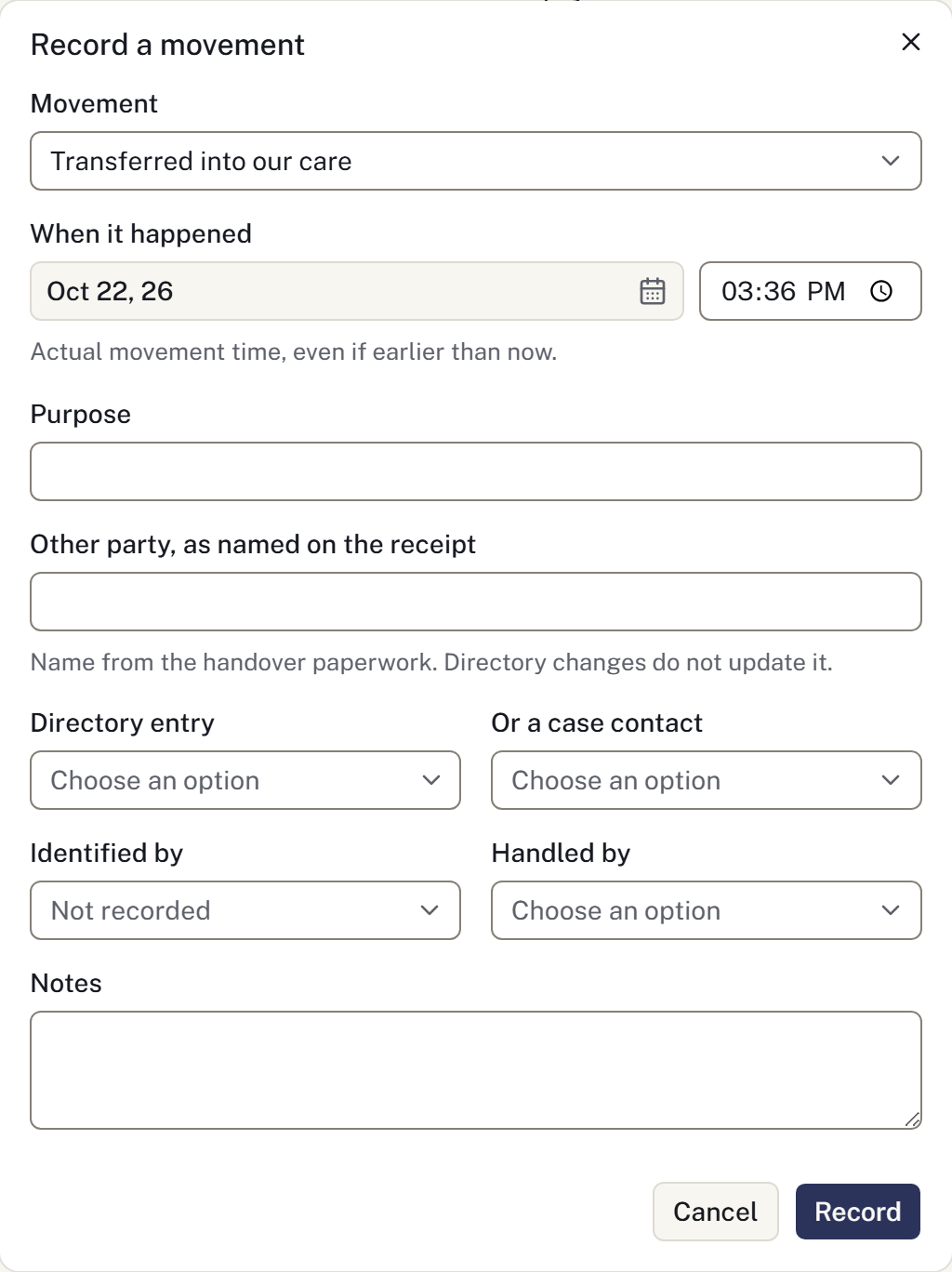
Record a movement
- Open Chain of custody and select Record a movement.
- Choose the Movement and enter When it happened.
- Record who handled or identified the decedent, as applicable.
- For a handoff, record the other party's name as it appears on the receipt. Select either a directory contact or a family contact if linking it to a record.
- Enter a Purpose when taking the decedent out of refrigeration, and add any relevant notes.
- Select Record and check the new history entry.
Use the time of the movement, including when entering it later. For a mistaken entry, use Void this movement, confirm, then record the correct movement. The original remains marked void.
Update preparation
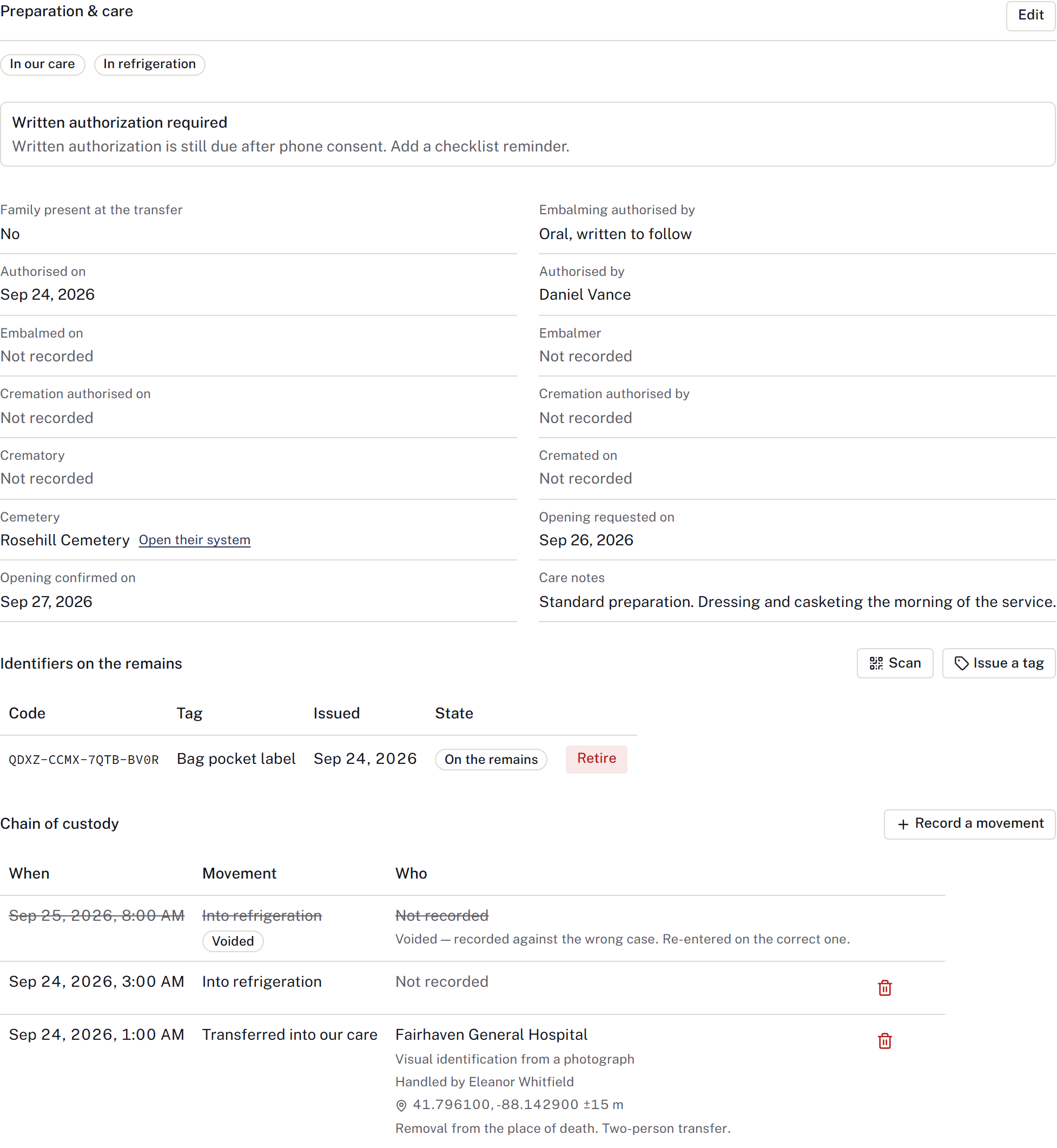
Open the preparation edit control. Record the applicable authorisation, embalming, refrigeration, cremation and cemetery details, then save.
Record authorisation details from the actual permission or document. Upload supporting paperwork to Documents. A completed field does not replace the firm's authorisation procedure.
If the record changed while you were editing, reload and review your colleague's changes before trying again.
Use identification tags
- Under Identifiers on the remains, select Issue a tag.
- Add a description if useful, then select Issue and use the generated label.
- Select Scan to read a tag with the camera or enter its code.
- Check the case identified by the tag, choose the movement and supply any required purpose.
- Select Record the movement.
A tag determines which case receives the movement. Check it against the remains before confirming.
When a tag comes off, select Retire, record why and confirm. A retired tag cannot be reused; issue a replacement if needed.
For collection from the place of death, see Record a removal. For retort records, see Record a cremation run.
Personal belongings
Record clothing, jewellery and other entrusted items in Belongings, including quantities, custodians, returns and receipt acknowledgement. A custody movement for the decedent does not record a belongings handover.
Record a storage location
Use Mortuary storage on the case to assign a physical space, move to another space or record removal from storage. Enter the time the movement happened and its reason. Refrigeration movements add linked custody evidence.
Use Correct location to reconcile an incorrect record without inventing a physical movement. A separate custody entry can make a location uncertain; its last space stays reserved until staff confirm the location. Do not treat an uncertain space as vacant.
The Custody & locations page shows capacity across accessible branches. Use its branch, status and search filters to find a space or case; the register shows ten spaces per page. Managers configure locations and named spaces in Settings → Mortuary storage. Availability changes remain on the daily board. An occupied space cannot be retired. Expected arrivals come from open removal dispatches and do not reserve a space automatically.
Storage history retains the source, destination, time and reason. Archive review flags a case that still holds a storage space.
If no spaces are configured, managers can follow Configure storage from the case. If all spaces are occupied or unavailable, Assign space is disabled. Location restricted means an assignment exists outside your accessible locations; it does not mean the decedent is unassigned.
If another operator changes a storage record while your form is open, cancel and discard the stale draft, then reopen the form to review the current record. Retrying a connection failure keeps the original submission identity.