Invite the family
Choose access and expiry. Anyone with the link can use it.
A family link opens one case without a staff account or password. Anyone with the link can use it until it expires or you withdraw it, so send it only to the intended recipient.
Create a link
- Add the recipient and their email address in Family & contacts on the case.
- Open Family portal and select Share with the family.
- Choose the contact in Issue to. Check the name as well as the email address if relatives share an address.
- Under Ask the family for, select the options they need.
- Choose Expires after: 7, 14, 30 or 90 days.
- Turn on Email the link if you want an invitation sent now. Otherwise, leave it off and send the link yourself.
- Select Create the link.
- Select Copy before closing the dialog with Done.
The link is shown only once. If you lose it, create another. Withdraw the old one if it should no longer work.
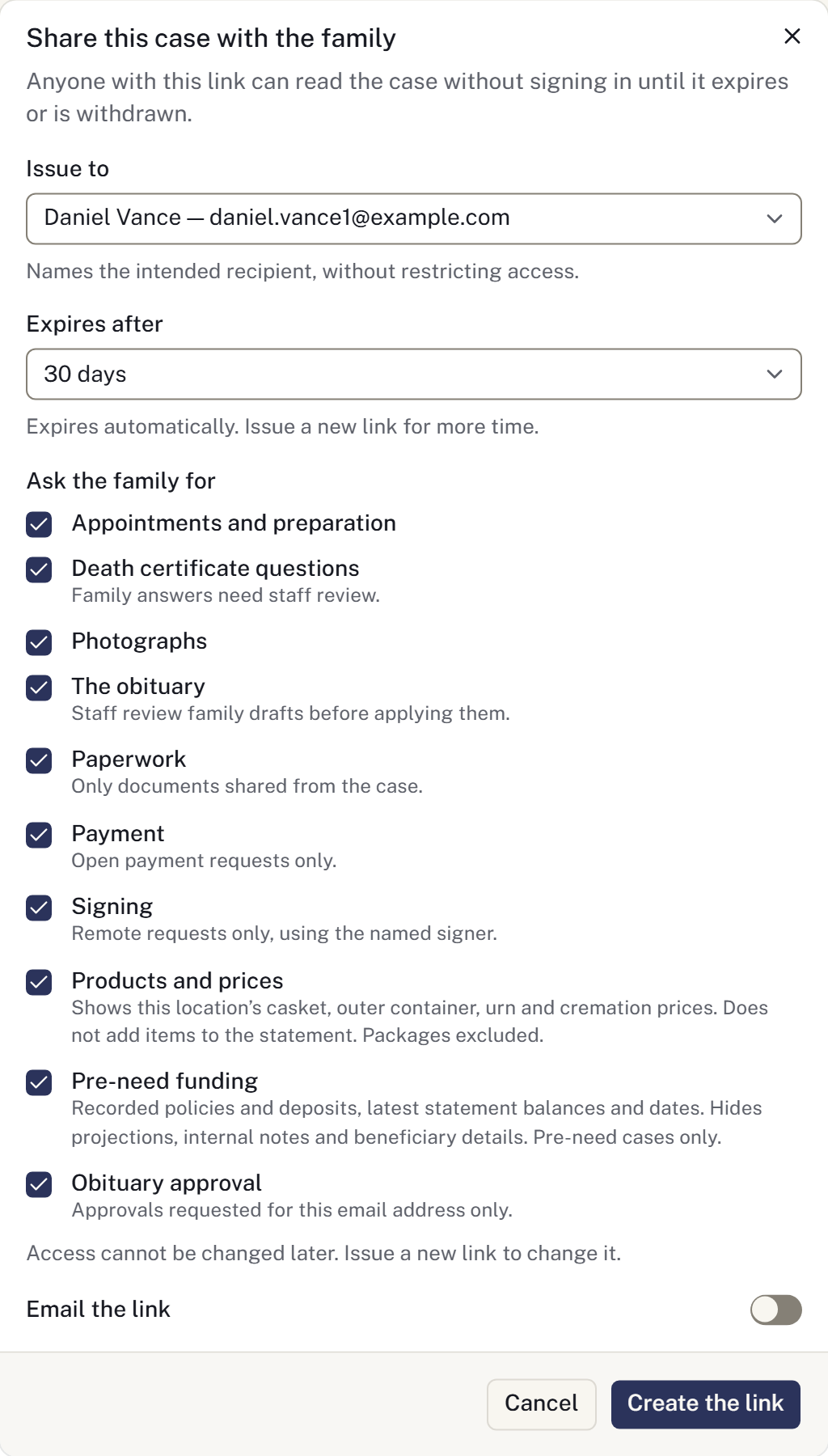
Choose what to include
| Option | What it gives the family |
|---|---|
| Death certificate questions | Questions whose answers come back for staff review |
| Photographs | A way to upload photographs |
| The obituary | A place to write a notice and read a draft you have shared |
| Obituary approval | A request for the named reviewer to approve a saved version |
| Paperwork | Documents you have individually shared |
| Payment | Open payment requests for the case |
| Signing | Documents requested for remote signature |
| What we offer | A read-only showroom at the case location's prices |
| What they have set aside | Recorded funding on a pre-need case, with statement balances and dates |
| Appointments and preparation | Offered arrangement times and optional preparation questions |
Choose no options to send service details only. The selection cannot be changed on an issued link; create a new link to offer something else.
Sharing a link does not automatically share documents or publish an obituary. Follow the document guide, signature guide or obituary guide to prepare those items.
Offer an arrangement appointment
In Service & merchandise → Family appointment, select the responsible staff member, date and time, meeting type, duration, buffers and joining instructions, then Offer a time. Check the firm's displayed time zone. Offer additional suitable times as needed, then include Appointments and preparation in the family's link.
The family chooses an offered time and selects Book appointment. They can choose another available time or cancel through that page before the appointment starts. Check the saved booking; offering a time is not a booking. A booked time must be cancelled or rescheduled before it can be withdrawn.
The optional Before we meet questions collect attendees, wishes, access needs and questions. Save draft keeps the family's work for later; Send answers sends it to the firm. Review the submitted answers before the meeting. Do not interpret an unfinished draft as a completed submission.
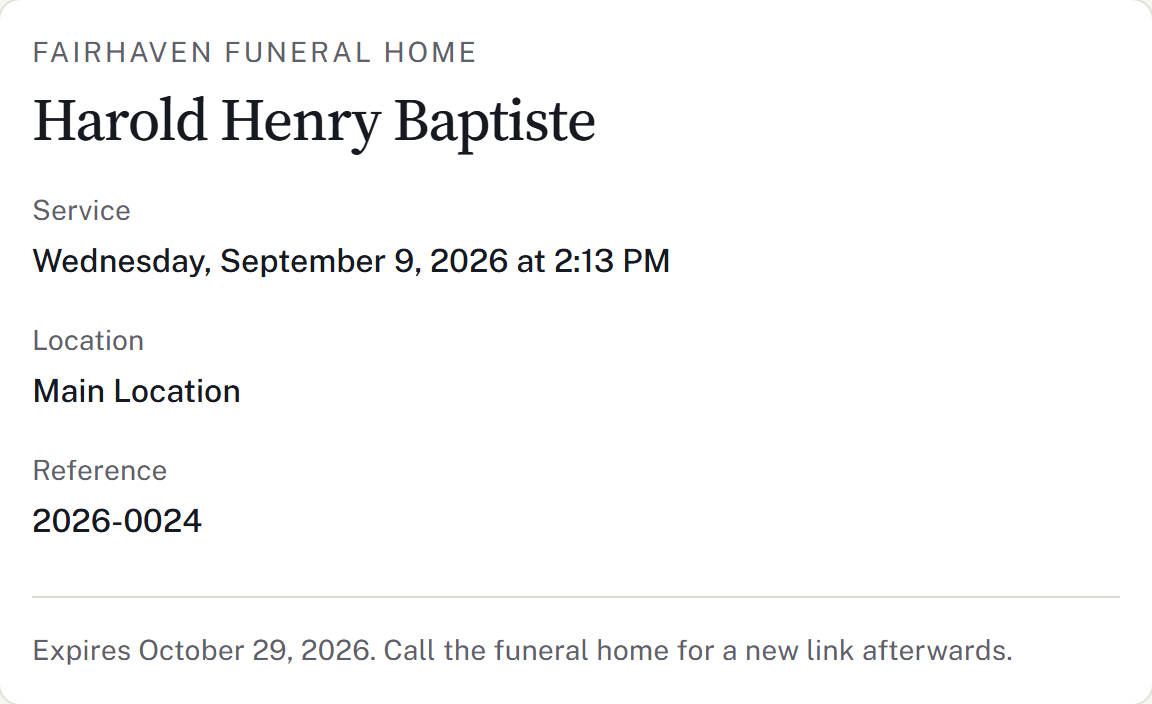
Check or withdraw a link
The list shows each link's status, expiry and recorded openings. Openings indicate use of the link, not proof that a particular person read it.
To end access, select Withdraw link and confirm Withdraw the link. Withdrawal is immediate and cannot be undone. Expired and withdrawn links remain in the history.
Archiving the case also ends access through its links. For delivery problems, missing options or expired links, see Help a family open their link.