Generate and share documents
A case's Documents section holds uploaded files and forms produced from the record.
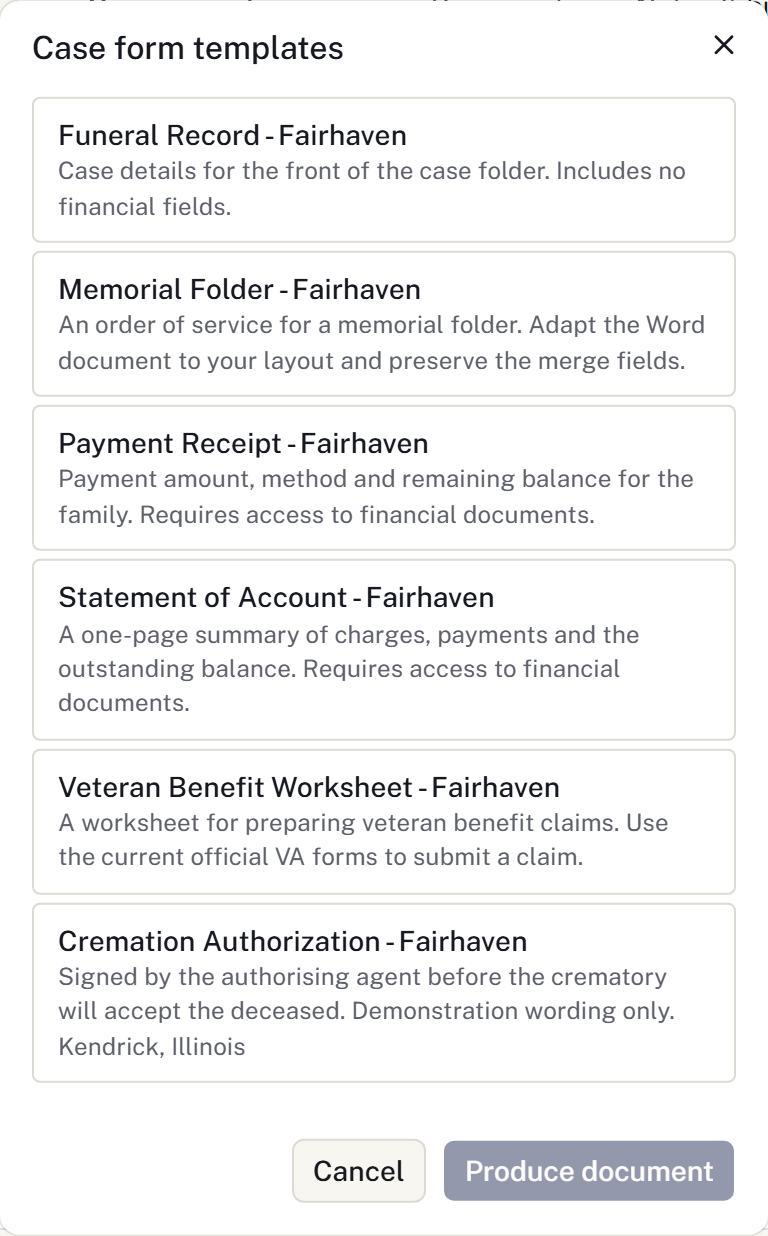
Produce a form
- Open the case and select Your forms.
- Choose the required form.
- Review any missing-field or jurisdiction notice. Fill in missing case information where needed.
- Generate the form, then open the saved document and check its contents before using it.
The output is filed on the case. Generating it again produces a new output from the current details; it does not update a copy already given to the family.
Managers and owners can upload form templates. A financial template is available only to staff with financial access.
Upload a document
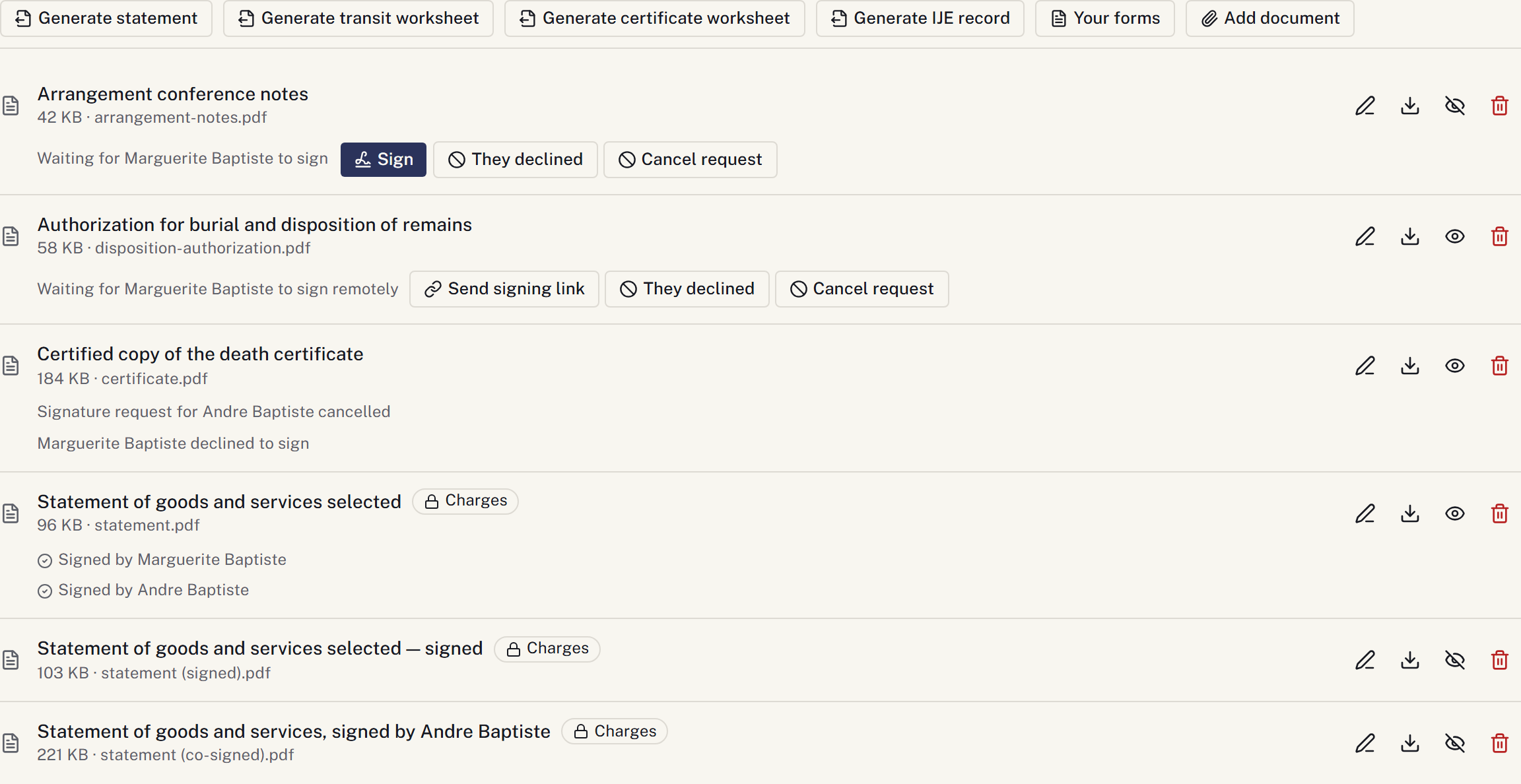
- In Documents, select Add document.
- Choose the file and give it a useful title, or keep its filename.
- Check Document access and any sensitive-data classification.
- Select Upload, then confirm the document appears in the list and opens correctly.
Financial documents are hidden from staff without financial access. Staff downloads require an authorized, audited request.
Removing a document hides it from future requests and retains the file. It does not recall downloaded copies or immediately revoke a download link already issued. Staff links request a 60-second lifetime; cached copies may remain accessible longer.
Share or stop sharing
Open the document's actions, select Share with the family, and confirm Share it. The family also needs a link with Paperwork selected.
Use Stop sharing to end portal access to that document. This cannot recall a copy the recipient has already downloaded.
To collect a signature, use Ask for a signature. Only PDF documents can be signed.
Generate forms for several cases
- In Cases, apply the filters you need.
- Select the cases. The header checkbox selects the current page; review any option to extend selection to all matching cases.
- Open the batch form action and choose the form.
- Select Generate.
- Check the result and download the batch.
A copy is filed on each case. Check any reported failures before rerunning the whole selection.
For a blank output, rejected file or missing form, see Fix a document problem.

Prepare related documents together
Use Paperwork packets for an ordered set of forms, required signers and a recorded family-copy delivery. Generating documents does not complete signatures or deliver the copies. Source changes can require a replacement packet; retained documents are not silently rewritten.
Approve and print family stationery
Use Service & merchandise → Print proofs for an item such as an order of service.
- Select Add print item, name its owner and needed-by time, and record the requested quantity.
- Upload the complete PDF to Documents, then Prepare revision with that PDF, production specification and the source information you checked.
- Select Request approval for the named family reviewer and exact proof. Use Send proof link for portal review, or Record family response for a response obtained by phone or on paper. Confirm receipt records receipt, not approval.
- Once the current proof is approved, Prepare print run for the required number of copies. Check the exact approved PDF before printing.
- Use Record output for good and spoiled copies. Stop unused runs where necessary, then Close completed item when all copies and runs are accounted for.
Source changes may require Review source changes or a replacement revision. Starting a replacement withdraws earlier approval for further printing. Use Authorize more copies for an actual request for more of the same artwork. Review any Reprint costs decision and required agreement before releasing more copies; recording output does not itself create an agreed family charge.