Review and publish an obituary
Sharing a draft with the family and publishing a notice are separate actions.
Prepare the text
- Open Obituary on the case.
- Enter or edit Obituary text and save.
- To show the draft privately, select Let the family read this and confirm.
- Give the family a link with The obituary selected.
The family can submit its own version. Review it under Family drafts. Select Use this to apply the version or Do not use to leave it out. Check the resulting text before publication.
If drafting from a recorded conference is enabled, review the approved notes first. A generated draft still needs staff review. See Recorded conferences.
If a colleague saves a newer version while you are editing, use Review saved text to compare it with your retained draft. Choose Keep my text for the next save or Replace my draft with saved text deliberately. Keeping your text prepares another save; it does not publish it or override the saved record immediately.
Obtain approval for the current version
In Family approval, select Create approval request after saving the text and portrait. Enter the reviewer and email, then Create request. Give that reviewer a family link with Obituary approval enabled. Creating the request does not email it.
Review the response against the saved version. Where firm policy permits, authorised staff can Record approval override with a reason; this does not publish the notice. Text, portrait or relevant service changes can require new approval. Check the current-version status before publishing.
Publish the notice
- Check names, dates, service details, approved text and intended public photographs.
- Review service confirmation and publication separately; a saved booking is not permission to publish it.
- Select Publish to the website and confirm Publish obituary.
- Open the public notice and check the result.
Use Put on the notice only for photographs the family has agreed may be public. Uploading a photograph alone does not publish it.
Change or remove publication
If the approval requirement blocks editing a published version, take it off the website first. Save the correction, obtain current approval or an authorised override, then publish again. Do not assume an approval of earlier text covers the correction.
Unpublish stops publication here but cannot recall screenshots, downloaded copies or search-engine caches. Check any separate website delivery result too. Review condolence messages through moderation controls; contributions need configured payments.
Track a newspaper placement
- Arrange the newspaper order in Suppliers and obtain approval of the exact obituary copy.
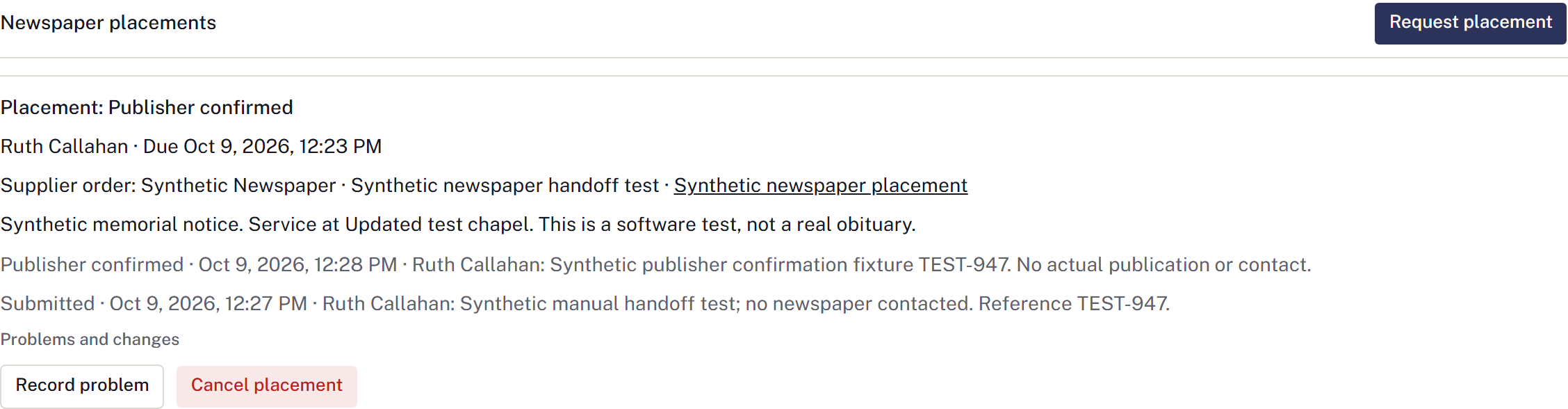
- Under Newspaper placements, select Request placement, choose Approved obituary copy and Supplier order, and set the owner and follow-up deadline.
- After submitting through the publisher's agreed channel, select Record submission and record evidence.
- When the publisher confirms, select Record publisher confirmation and record what they confirmed.
Requesting or recording a placement does not transmit it to a newspaper. Use Record problem or Cancel placement for the actual outcome and arrange any external cancellation separately. Changed copy or service details require renewed approval and review with the publisher before a replacement submission.
Today and shift handovers read the same placement status. Submitted still means publisher confirmation is outstanding.
For site settings and old obituary addresses, see Manage the website.