Upload a form template
Managers and owners can upload templates under Settings → Case workflow → Form templates. Staff then produce them from a case using Your forms.
Prepare the file
For a Word document, use a .docx file and write merge fields in braces. For example:
Case: {case_number}
Name: {decedent_full_name}
For a fillable PDF, name its form fields using the merge-field names without braces, such as case_number. An ordinary PDF with no fields can also be uploaded for signing, but it will not fill in case details.
Use Merge fields you can use on the settings page for the supported names. Copy them exactly. Unknown fields are rejected during upload.
Choose PDF when the generated document needs an electronic signature. A Word template produces a Word document, which cannot be signed in the app.
Upload and test
- Select Upload template.
- Enter Template name and an optional description.
- Choose the Word document or PDF. Check the size limit shown beside the file control.
- Set an optional jurisdiction for government forms. Leave it blank for general firm paperwork.
- Select Upload.
- Open a suitable case, select Your forms, and generate the template.
- Review the complete output, including names, amounts, layout and blank fields.
Templates using financial fields are restricted to staff with financial access. Using the Social Security number records a protected read. Cause of death is not an available merge field.
Replace an outdated template
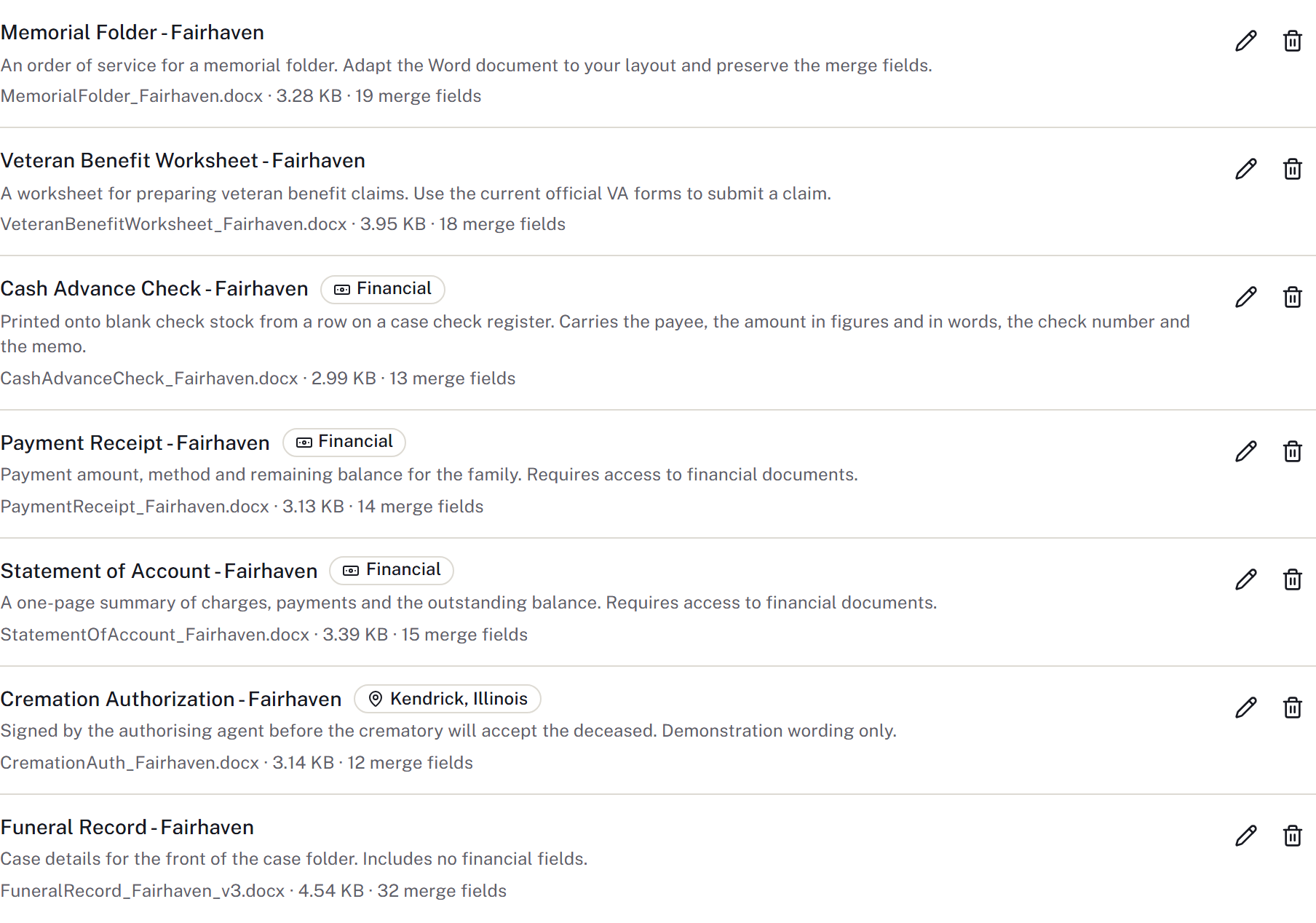
Edit changes the name, description, jurisdiction and QR-code width. To change the file itself, upload a replacement and retire the old template. Use a distinct name if the existing active template has that name.
Retiring stops new use of the template. Documents already generated from it remain on their cases.
For rejected fields, missing values or signing problems, see Fix a document problem.
Packet and approval setup
Use Packet definitions to save an ordered set of built-in forms and supported firm PDF templates, with applicability, required inputs and signer roles. Create revised version affects future packets; existing packets retain their original versions. Follow Paperwork packets.
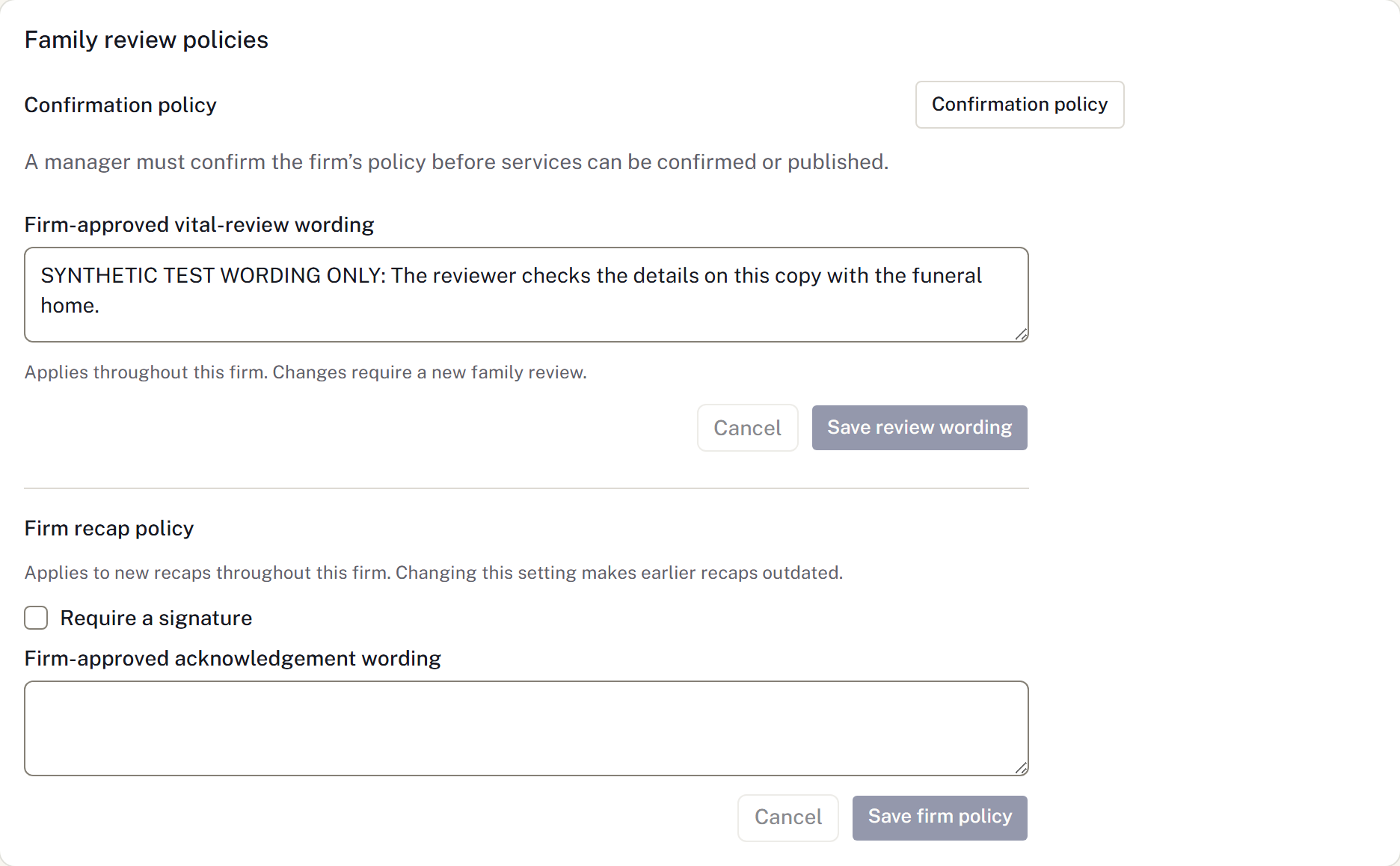
Under Funding approval policies, record the firm's confirmed approvers, signing order and required financial PDF forms before enabling a route. See Funding and financial clearance. Under Family review policies, set the firm-approved vital-review wording, recap acknowledgement and signature requirement. Configure the service-confirmation policy there too. The case shows the applicable policy state and links authorised staff back to these settings. Save each policy before generating new family copies.