Complete vital statistics
Use Vital statistics on the case to prepare the certificate record. This does not submit a death certificate to a registrar.
Begin the record
- Add the informant in Family & contacts.
- Open Vitals. On an open at-need case the whole worksheet is already on the page under Vital statistics. On a pre-need or finished case, select Begin vital statistics.
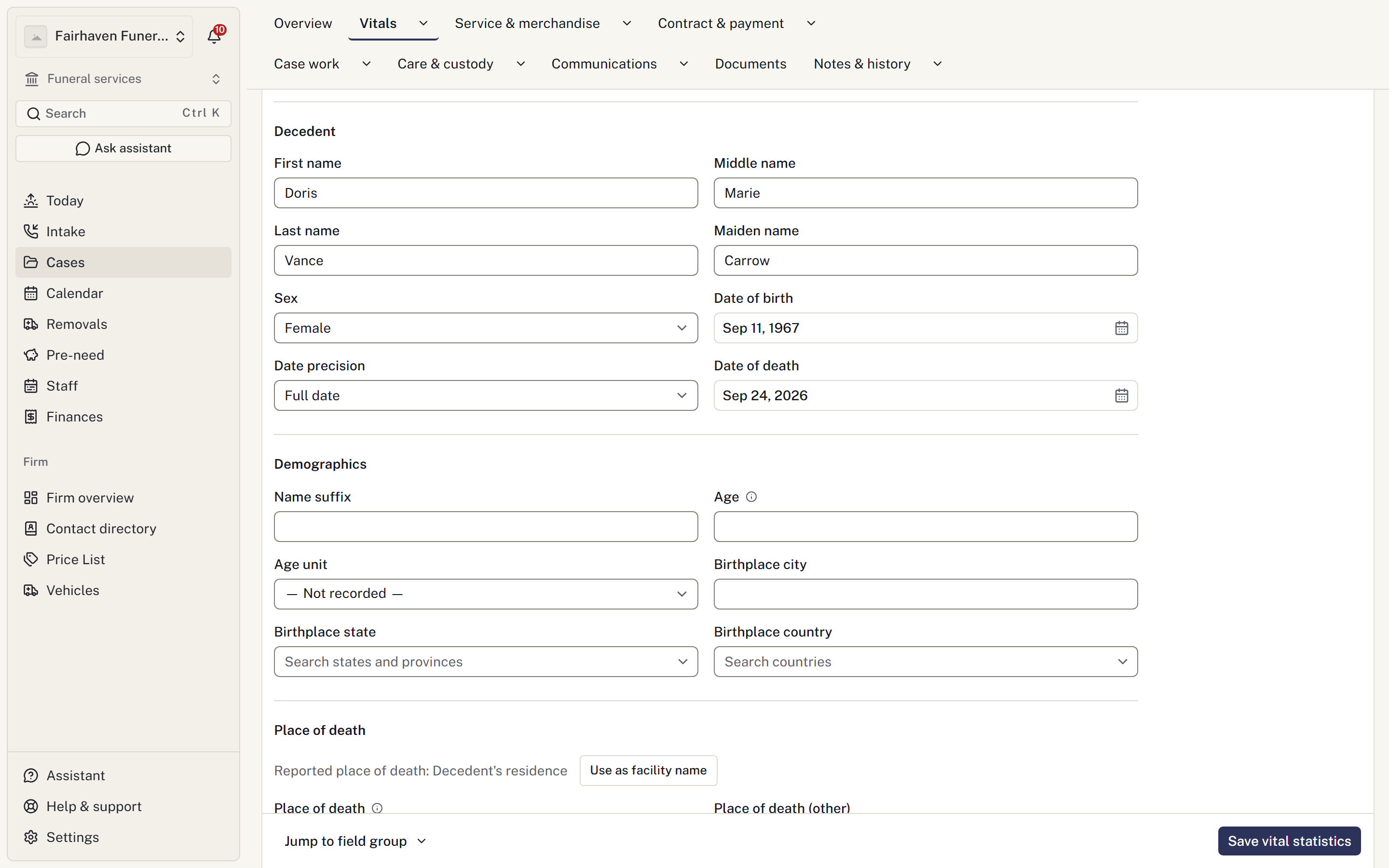
- Check Filing state, then enter the details you have. The decedent's name, sex and dates come first, followed by every certificate section. Use Jump to field group, beside the save button, to move between sections.
- Select Save vital statistics, which stays at the bottom of the screen. Unanswered questions can wait. Afterwards, use Edit all vitals, or edit one section, as more information arrives.
Under Place of death, Use as facility name copies the place recorded at first call. The case's cause of death is the reported summary; record the certifier's cause of death in its own section.
Record race and Hispanic origin
Tick each race the informant reported, then tick No other races reported to record the rest as No. For Hispanic origin, tick No, not Spanish/Hispanic/Latino or Unknown, or tick each reported origin and confirm No other Hispanic origins reported.
Leave a question unticked until it has been answered. An unanswered question keeps the certificate checklist item open.
Use the filing jurisdiction's current instructions for required fields, wording and submission. A blank field is not necessarily the same as an explicit unknown value.
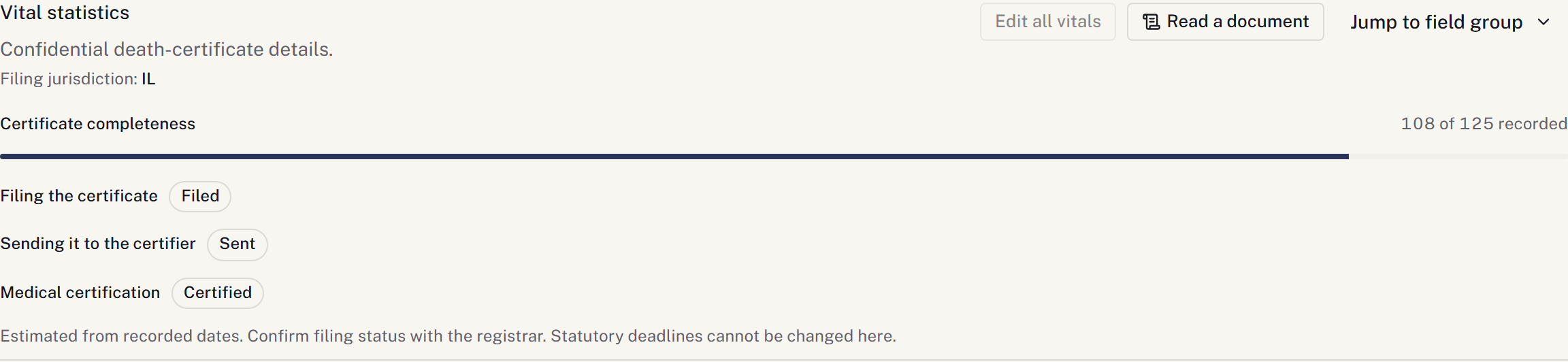
The progress shown here comes from recorded information. It is not a receipt from the registrar or confirmation that a submission was accepted.
Review family answers
If the family has been sent death certificate questions, their answers appear in Family answers.
- Open the submission and compare it with the current record.
- Check the fields to be applied, particularly where they replace existing information.
- Select Apply and confirm Apply to the certificate.
- Recheck the saved values.
Choose Do not use for a submission that should not be applied. The family does not overwrite the staff record directly.
Social Security number
The number is hidden until revealed. Reveals are recorded. Producing a form that uses the number is also a recorded read, even if you did not reveal it on screen.
Use the add or replace control to correct the number. Do not copy it into internal notes, ordinary messages or support requests.
Prepare the filing output
Review missing-field information before producing a form or export. Resolve fields that belong to the firm and follow up on information owed by others. Keep a wait for an outstanding certificate or approval.
Use Your forms for the appropriate document. Where an IJE export is offered, it produces a file for the receiving system; it is not confirmation of submission or acceptance.
For document or licence extraction, see Review scanned information.
Obtain a family review of the saved details
In Family vital-information review, select Generate family review after checking the case details. A firm administrator must first save the firm's approved review wording in Settings → Case workflow → Form templates → Family review policies. Open the retained PDF and review that exact version with the family.
For an electronic review, use Open documents and electronic signatures. For a paper review:
- Upload the signed PDF in Documents and mark that it contains a Social Security number.
- Select Record paper review beside the retained version.
- Choose Family reviewer, Relationship / capacity, Signed paper scan and Review outcome.
- Check the scan against that exact version, confirm the attestation and select Save paper attestation.
Corrections requested does not change vital fields. Apply the verified corrections to the case and generate a replacement for review. An outdated copy remains in history but does not verify the current details. This family review is separate from government filing or acceptance.
Track certified copies
On the case, open Vitals → Certificate copies. Select Request copies and record the quantity. Use Reorder copies beside an existing request when the family needs another batch.
Record each order, receipt and delivery separately. A partial receipt leaves the remaining quantity awaiting receipt; a partial delivery leaves the remaining copies available to deliver. Record the recipient and whether copies were collected or mailed. Mailing records dispatch, not confirmation that the recipient received the envelope.
Use Reverse entry to reverse an incorrect entry while retaining its history. Dependent deliveries must be corrected before reversing the receipt that supplied them. Order cancellations and surplus copies need an explanation.
Staff with financial access can link an existing statement charge. Linking a charge does not create or change a charge. Archive review shows copies still outstanding.