Plan the working day
Open Today at the start of a shift to see services, arrangements and work needing attention. Switch between your work and the firm's work where offered.
Beside the switch, Today names anything waiting in other queues, such as 2 first calls to review, 1 online arrangement to review or 1 handover to acknowledge. A queue with nothing waiting is not listed. Refresh and Prepare a handover are at the top of the page.
The views beside Work are Handovers, Supplier work and Family conversations. Supplier work lists open supplier commitments and their follow-ups; see Follow a supplier request. Family conversations lists conversations by response state and owner. It appears only for staff who can see financial records; see Family conversations.
Work through due tasks
- Open an item under Needs attention.
- Review the linked case and complete the work.
- For a manual checklist item, mark it complete when finished.
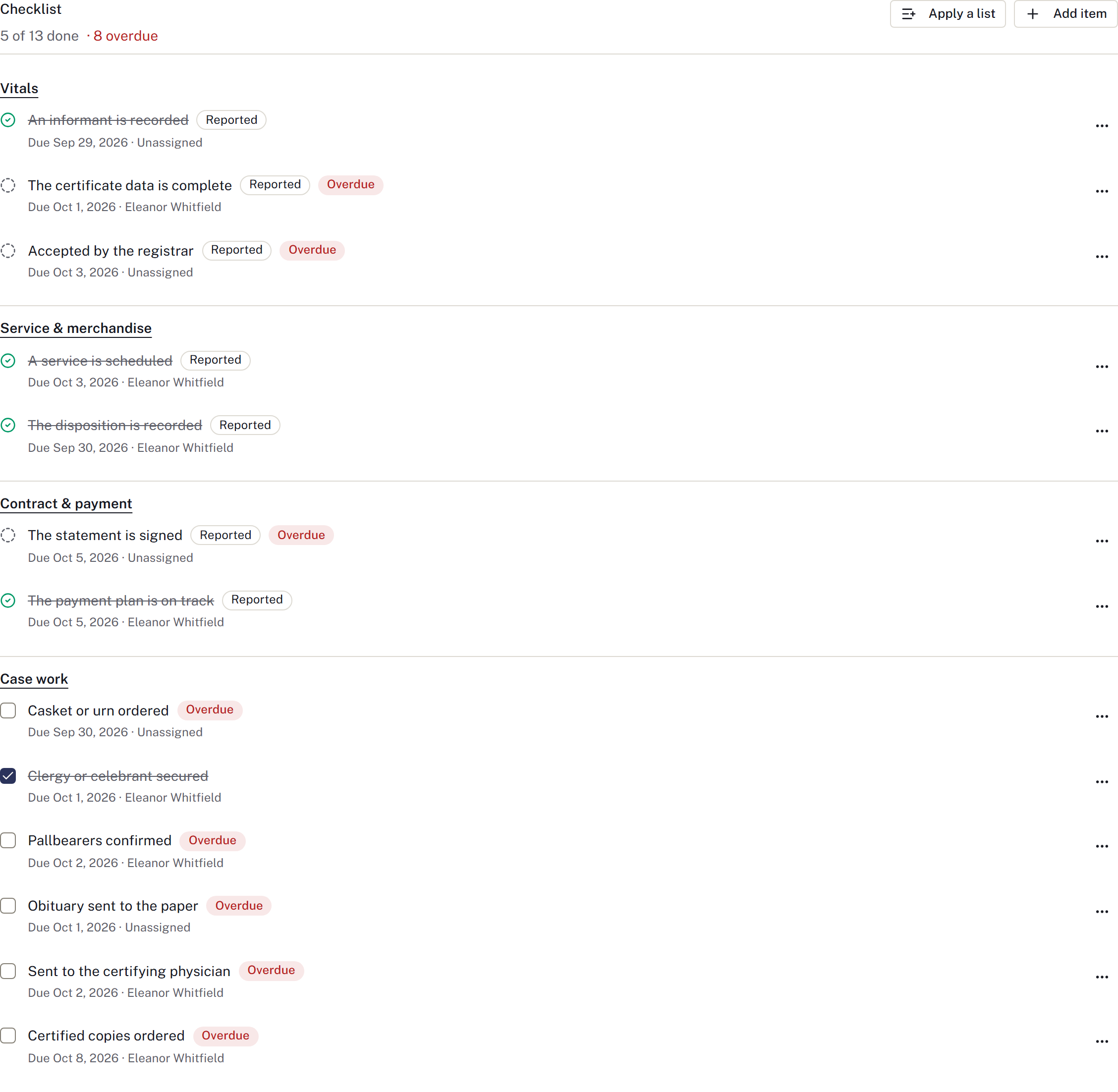
- For a reported item, update the record it reads. It cannot be ticked by hand.
To add work, use Case work → Checklist → Add item, enter Task, choose Assigned to and set Due. Choose the appropriate Area so it also appears beside that stage's work. Save and check the task. Stage lists and Full checklist show the same records; do not create duplicate tasks for each view.
Review undated work and upcoming services
Under Needs attention, review Needs a date and Upcoming work without an owner. Open the linked case to assign a date or colleague. Undated work is kept separate from today’s deadlines.
Service readiness starts with tomorrow in the firm’s timezone. Change the day or location to review another set of services. Follow the linked checklist, staffing, merchandise and external-wait records. Not established means the available records cannot answer; it does not mean ready.
Review External follow-ups for open waits due today, overdue, or without a date. Check the named staff owner and next follow-up time before handing over.
Assign or follow a case
Use the case summary's edit control to assign the responsible director. If someone is unavailable for selection, check their membership and location access.
Select Watch case to follow its notifications. Use Stop watching when you no longer need them. Financial notifications remain subject to financial access.
The notification bell opens the relevant record. Read the current case before acting; a notification may describe a state that has since changed.
Use a saved board
Open Cases → Board and choose a saved view. A board is a filtered view of cases, not a separate set of records.
Staff who manage settings can create or edit a board, choose its columns and filters, and save it for the firm. Financial columns remain hidden from colleagues without financial access.
If a board is empty, check its filters or return to Cases. Deleting a board does not delete its cases.
For someone else's outstanding response, record a wait.
For a worked example with screenshots, see Workflow example.
Follow service notices and newspaper work
Service and newspaper follow-ups lists due, overdue and undated work for the selected scope. Open the linked case section to act. A sent service email stays outstanding until acknowledgement is recorded; a submitted newspaper placement stays outstanding until the publisher confirms it. Details changed — review needed requires review of the current version, even if an older version was complete.
The queue reads the source records. Do not add a second completion checkbox just to clear Today. Follow-up status unavailable is an unavailable read, not an empty queue. Use Shift handover to leave the next colleague both the prepared brief and current status.