Follow a supplier request through delivery
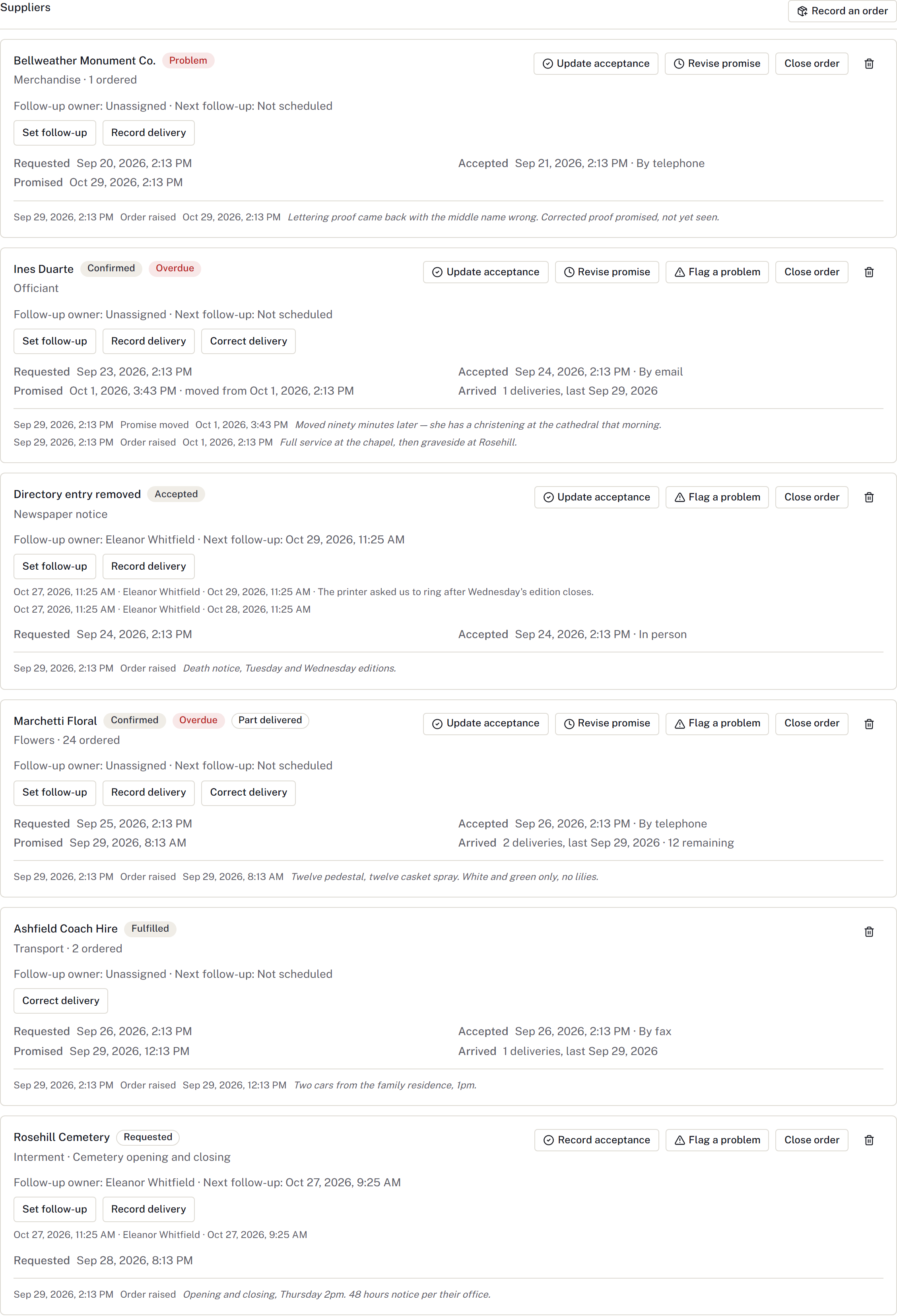
Two floral arrangements are needed before a funeral. A staff member contacts the florist, follows up on the promise and checks what actually arrives.
Request and confirm
- Contact the supplier through the firm's normal ordering process. Ensure the supplier is in the directory.
- On the case, open Suppliers → Record an order. Choose the supplier and order type, link a statement item if appropriate, and enter the quantity and note. Select Record the order. This records the request; it does not send an order to the supplier.
- When the supplier agrees, select Record acceptance. Enter When they accepted, the Confirmation method and Promised for, if they gave a time. Select Save acceptance. Acceptance without a promised time still needs a timing decision.
Follow up on a delay or partial delivery
If the supplier gives a new time, select Revise promise and record the agreed time; the previous promise remains in history. Use Flag a problem for an exception that needs attention. Use Set follow-up on the supplier order to choose the responsible colleague and next follow-up time. Changes retain the earlier values and your reason. The supplier promise remains separate from your next call.
When one of the two arrangements arrives, select Record delivery, enter when it arrived and the quantity received. Review the remaining quantity. Record the second delivery when it arrives rather than treating a partial delivery as complete.
From Today → Supplier work, filter open commitments by location, responsible staff, due date, late promise, missing owner, awaiting acceptance or future commitments. Completed cases remain included. Archived cases retains outstanding commitments for review; reopen the case before changing them. Each row opens the exact supplier order. A future follow-up does not hide a late promise.
For linked physical merchandise, Record delivery offers Also mark the linked item fully arrived. It starts off: only select it after checking that the whole item has arrived. This saves the receipt and arrival together, without closing the order. Partial quantities alone never mark merchandise arrived.
Use Correct delivery for an incorrect receipt. If that receipt recorded an arrival, explicitly keep the arrival with an independent-evidence reason or undo that linked arrival. If another person changed the merchandise since then, refresh and review their change before correcting it.
Finish the order
Check that the goods arrived or the service was performed. Use Close → Fulfilled when the order is complete. If it is no longer wanted, arrange cancellation with the supplier and use Close → Cancelled. Check carefully: closed orders cannot be reopened. Withdraw order is for an order entered against the wrong case.
Update any related merchandise tracking, cash advance and external wait as appropriate; those records serve separate purposes.
Finished when: the outcome is recorded and any remaining supplier commitment has been resolved or handed to a named colleague.
For a newspaper order, use Newspaper placements to track the approved copy, actual submission and publisher confirmation. Supplier acceptance alone does not record those outcomes. Keep private supplier costs separate from the family's billed charge.