Record a payment
Record a payment after the firm has received it. This adds an entry to the case ledger; it does not charge a card or move money between bank accounts.
You need permission to manage financials. If Record payment is unavailable, ask your owner to check your role.
Enter the payment
- Open the case and go to Payments.
- Select Record payment.
- Set Type to Payment.
- Enter the Amount as a positive number.
- Set Received on to the day the firm received the money.
- Choose the Method. Add a check number or transaction identifier in Reference, if available.
- Add any useful Notes, then select Record payment.
The payment appears in the list. Check its amount, date and method, then check Collected and Balance due.
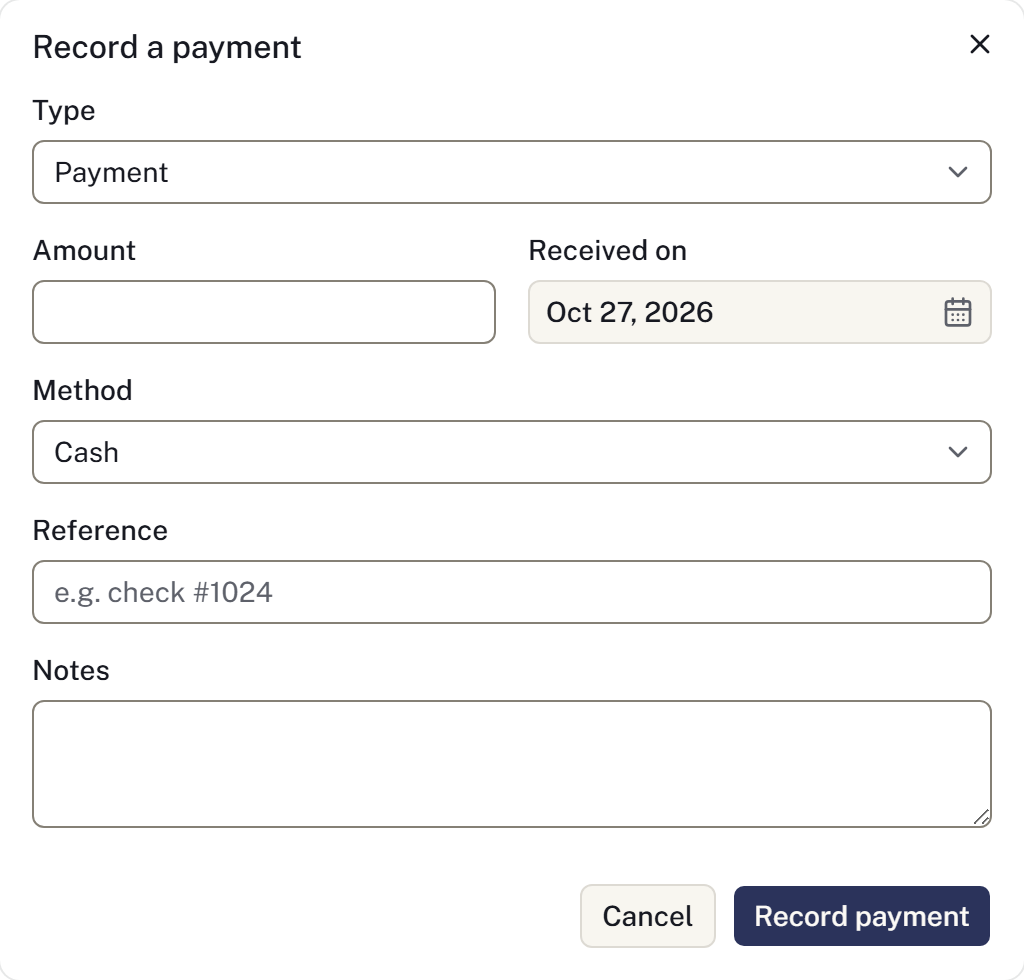
For example, a check received on Friday and entered on Monday should have Friday's date.
Deposits and receipts
A deposit from a family is a payment against the case. Record later payments separately as they arrive. A payment plan records agreed dates and amounts but does not collect them.
Use Your forms to produce a receipt from the firm's template. See Generate and share documents. A bank deposit slip groups payments for reconciliation.
Avoid recording a payment twice
Successful online payment requests add payments automatically. Check the request and ledger before entering a manual payment. A bank payment still processing has not yet cleared.
If saving times out, reload the case and look for the entry before starting another payment.
For an incorrect entry, returned payment, refund or write-off, use Correct a payment. An insurance assignment does not reduce the balance until a settlement is recorded.
For a worked example with screenshots, see Workflow example.