Build the statement
You need permission to manage financials to change a statement. Staff with read-only financial access can review it.
Start and add items
- Open the case's Goods & services section and select Open the statement.
- If none exists, select Start the statement and confirm.
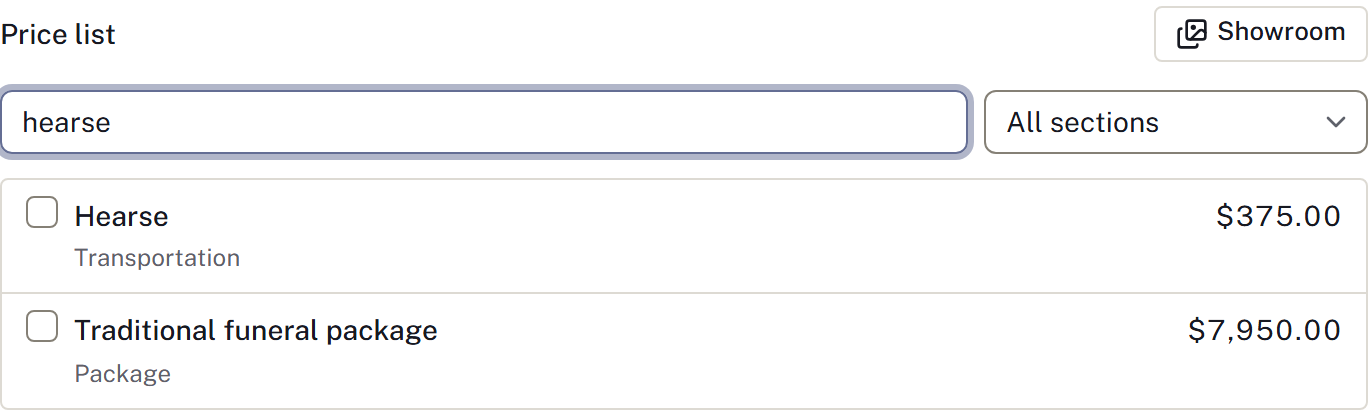
- Under Service & merchandise, choose a package or check price-list items for the working statement.
- Review the selected-items section beside the catalogue; on smaller screens use Review selection where offered. Check the selected items, quantities, unit prices and any overlapping package items. A selected item is not yet a saved charge.
- Select Add selected, then check On statement and use Review agreement and payment to review the statement. If a save result is uncertain, check the statement before selecting the charges again.
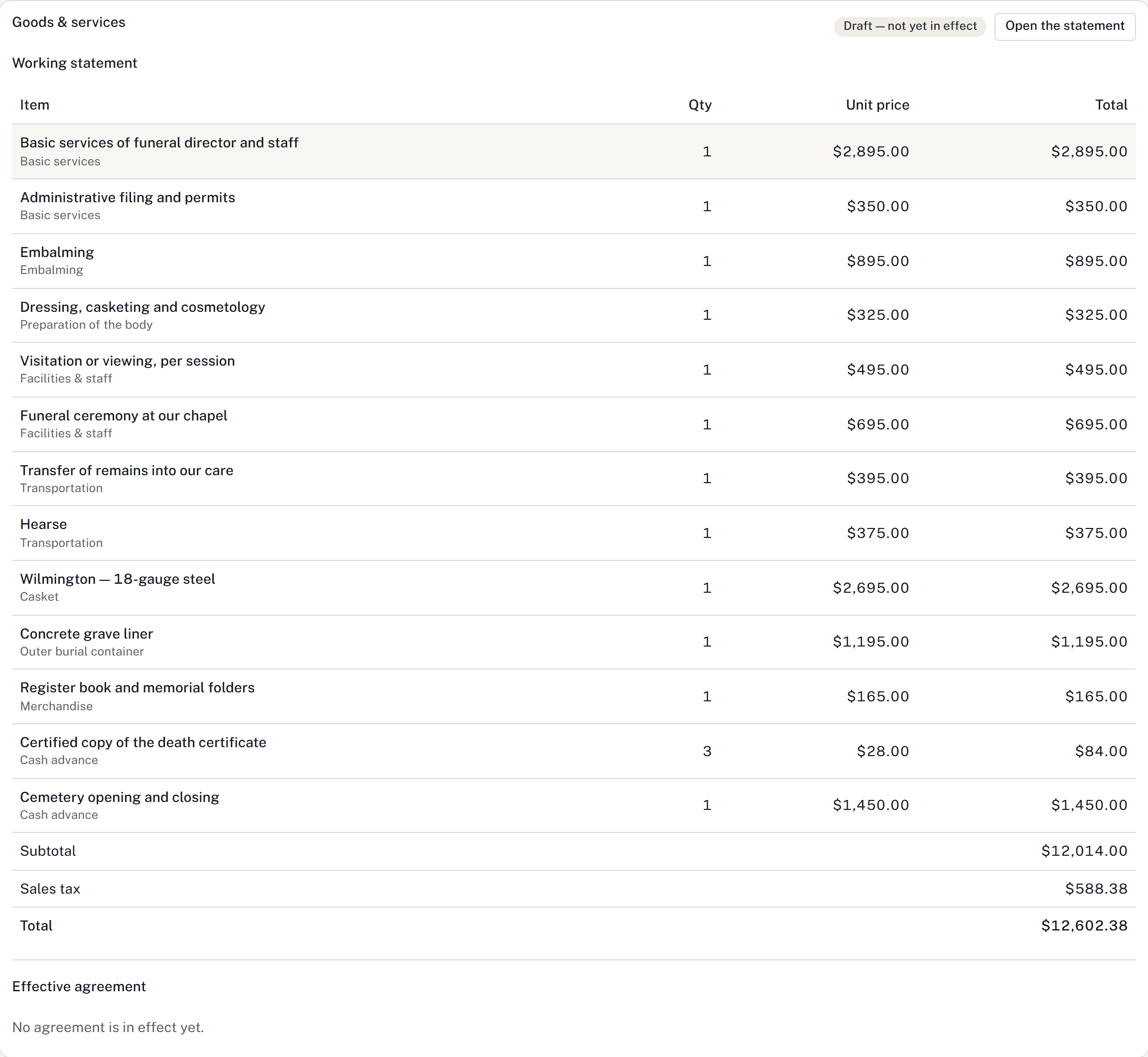
- Check the goods and services, cash advances, sales tax and final total. Edit saved lines where a correction is needed and the statement remains editable.
For a separately described charge, open Custom item, enter its details and save with its own Add an item button. Check the saved statement line; Add selected applies only to catalogue selections.
If an item is missing, ask a manager or owner to add it to the price list. A package should be checked through its component lines before the statement is agreed.
Use Required purchase to record a written reason for an item required by an applicable rule or third party. This text appears on the statement. Statement notes are internal.
The statement total is the charge. Payments and write-offs determine the balance; paying a supplier does not reduce what the family owes.
Record agreement
Review Working statement and Effective agreement before acting. A draft or replacement being prepared is not yet the effective agreement. If Agreement needs review appears, review the retained versions and save the correct selection before relying on totals.
Prepare the exact statement PDF and configure Required signers in Documents. Choose each case contact, their role and whether their signature is required before saving. Follow Request a signature, or record paper evidence through Paperwork packets. The agreement becomes effective only when its required signatures are complete. A first signature can lock the working copy while other required signatures remain outstanding.
The statement's Sign control records a signatory; it does not itself collect a drawn electronic signature or replace outstanding required signatures. Check the agreement status afterwards.
Print produces a working copy of saved lines, totals and disclosures. Unsaved entries and internal notes are not included. Use the retained signed document for the family's agreed copy.
Prepare a replacement
- Select Prepare replacement on the current agreement.
- Edit the working copy, check all items and disclosures, and prepare fresh documents.
- Obtain every required signature for that version.
- Check that the replacement is now the Effective agreement.
The existing agreement remains effective while its replacement is being prepared or signed. Do not void it simply to begin changes. Use Abandon working statement if the replacement is no longer needed; this voids the working copy and cancels its pending requests while keeping the effective agreement.
Void is a separate correction action. Read its confirmation: the statement remains in history and voiding cannot be undone. Existing payments remain, so review the balance and any open payment requests after a replacement or correction.
Budgets, estimates and supplier costs
Use Budgets and supplier costs → Edit planning figures for the family's budget and private supplier cost. These planning amounts do not change billed charges or the balance. Check Charge basis and the estimate source shown on the statement. Changing a signed charge or finalising its estimate requires a replacement agreement.
For supplier expenses, see Record a cash advance.