Create checklist templates
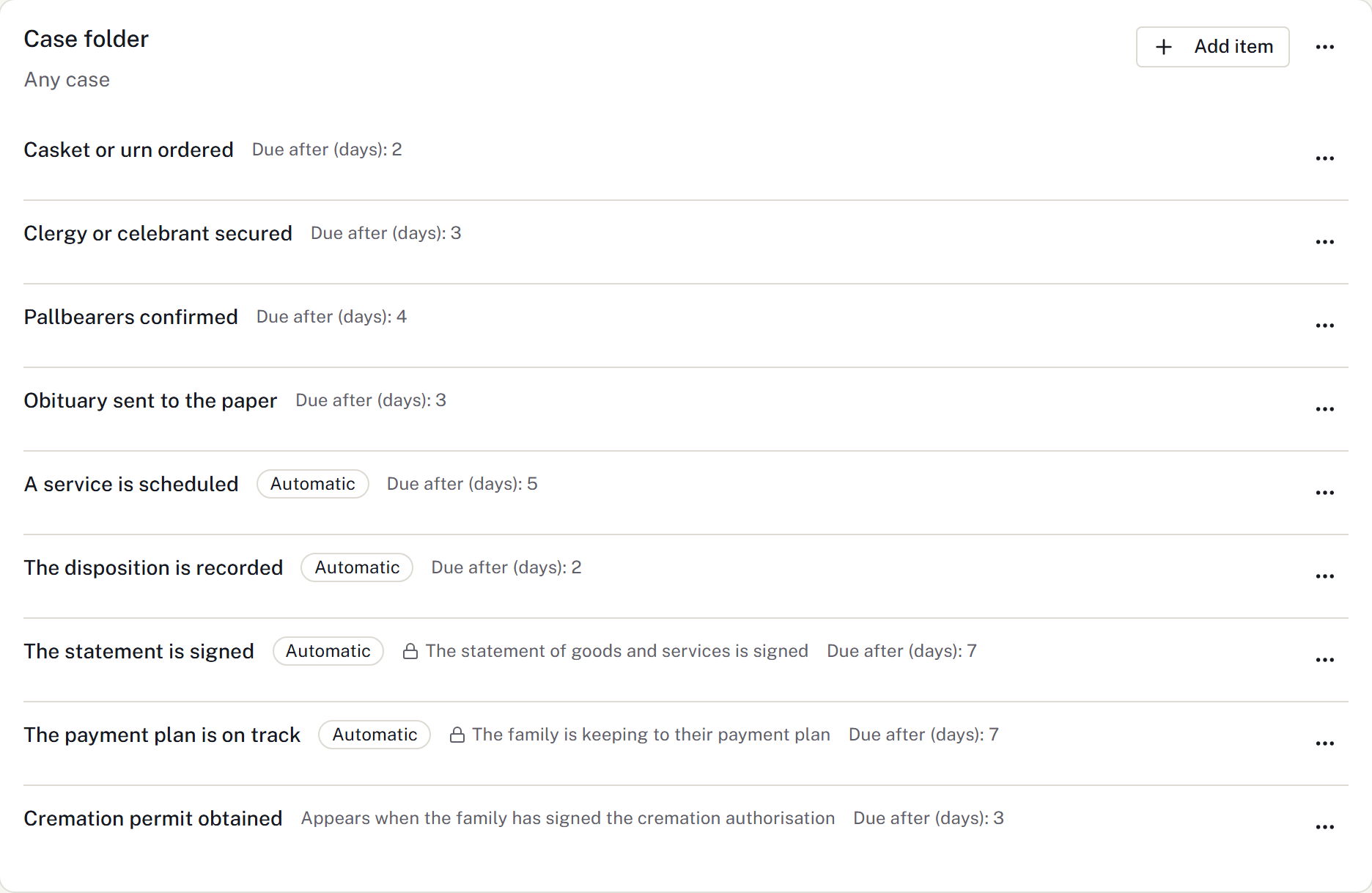
Use Settings → Case workflow → Checklists to prepare lists staff can apply to cases. Start with the tasks your firm already follows.
Create a list
- Select New list.
- Enter its name and choose the case type or disposition under Suggested for.
- Save the list.
- Select Add item and enter What has to happen.
- Choose the item's Kind.
Use Completed manually for a task a colleague completes. Use Updated automatically when completion comes from an existing case fact, then choose Completion condition.
Set Appears when if an item should be added only once a particular fact becomes true. Enter an optional Due after (days), counted from case creation, and save.
Apply it to a case
In the case's Checklist, select Apply a list and choose the template. Review the resulting tasks and assign staff or adjust due dates as needed.
A reported item cannot be ticked manually. Update the underlying record to change its state. Financial items are shown only to staff with the appropriate access.
Change or retire a template
Use Edit list and the item controls to maintain the template. Existing case tasks are retained; editing the template is not a bulk edit of every case.
Use Retire list to stop offering it for new use. Tasks already applied remain on their cases.
See Plan the working day for completing and assigning case tasks.
Reusable service sequences
Use Settings → Running sheets for the firm's service-day sequences. A running-sheet template sets planned steps and relative or fixed times; it is separate from a checklist's completed/reported tasks. Apply it to an empty case running sheet, then review the actual times and leads. See Run the funeral on the day.