Invite staff and manage access
Managers and owners can invite staff. Use an individual account for each person so changes are attributed correctly.
Invite a colleague
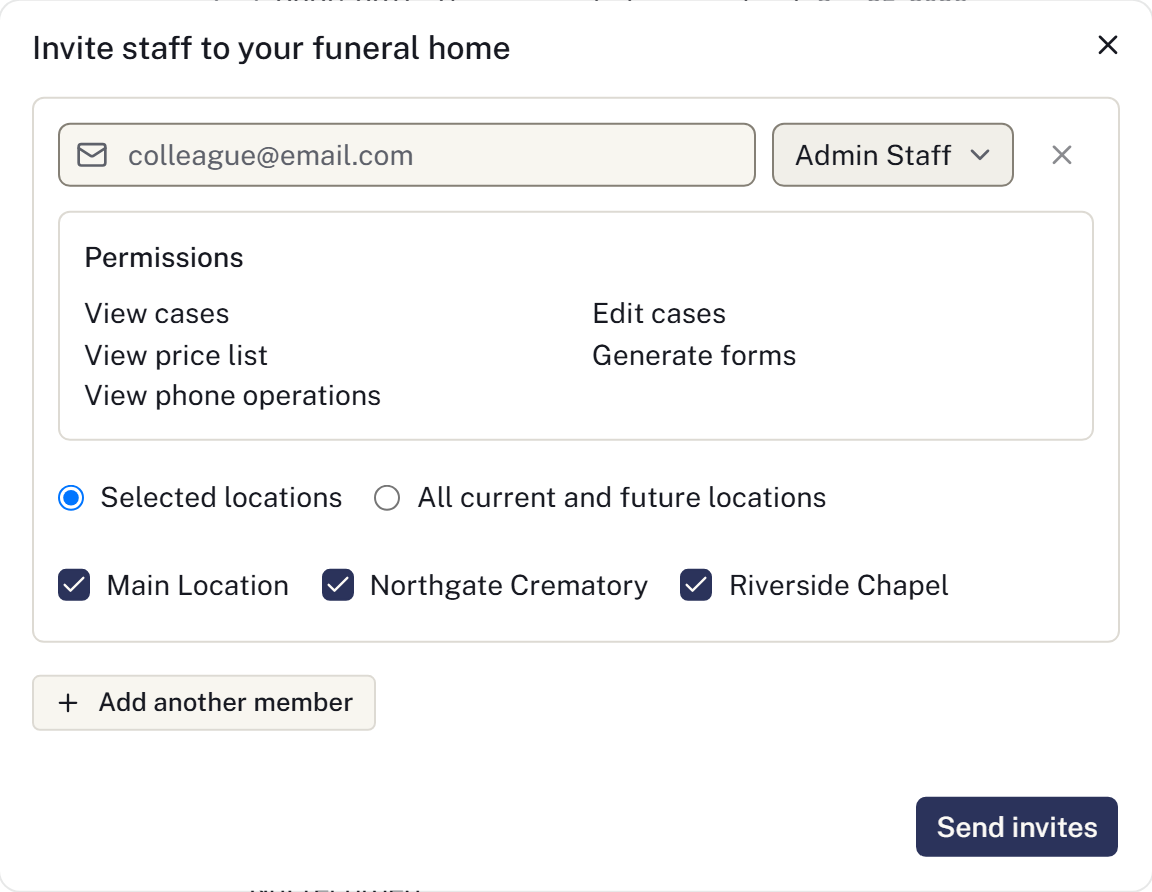
- Open Staff → People and select Invite staff.
- Enter their email address, choose an available role and review the location scope. Select the intended locations, or All current and future locations only where you are authorised to grant that scope.
- Select Send invites.
- Ask them to open the invitation, sign in with the intended account and select Join.
Check Pending invites if the person has not joined. Use Resend invitation for a missing email or Renew invitation for an expired invitation where offered.
If the invitation opens under the wrong account, sign out and sign in with the invited address.
Choose a role
Use Who can see what to compare the standard roles. Choose access for the person's work, including whether they need to read or change financial records.
A firm's custom role names do not change the underlying permissions.
Restrict location access
Use the member's location-access controls where your authority permits. Select each location the person should access and save. Delegated staff administration is limited by your own role and location scope; ask an owner when the required change is outside that scope.
Check whether the saved scope names selected locations or all current and future locations. Do not clear a restriction list to remove access: an unrestricted member can access all locations. Remove the membership when access should end entirely. Owner access is not restricted in the same way as other roles.
If a case cannot be assigned to someone, check whether they can access its location.
Change or remove access
Use the member's role action to select the new role and save with Update role, where your role permits this.
When a colleague leaves, use Remove from funeral home. This removes their membership; it does not erase the cases they worked on. Transfer primary ownership before removing or replacing the primary owner.
Removing someone, narrowing their locations or lowering their role takes effect on their next action, including in a browser tab they already have open. Their unfinished work stays assigned to them. Work needing a new owner at the top of Staff → People lists it for owners and managers: case responsibilities, tasks, waits, family conversations, removals, service staffing, appointments, print items, cremations, future shifts and on-call cover. Each entry names the person and the reason, such as No longer at the firm or No access to this location. Open the entry and choose a new owner there. Reassigning work keeps its history.
For sign-in problems, see Account and access problems.
Review existing access
Owners open Staff → People → Access reviews to review colleagues' current role and locations. Choose Keep access, Change or Remove access, enter a reason and complete the review. Changes take effect when saved; completed reviews retain the permissions before and after the decision. You cannot review your own access.
Reviews are due every 90 days. Sign-in dates indicate account activity; an unknown date does not mean access was unused. Reminders alert eligible reviewers about due reviews and grants expiring within seven days. Platform administrators review operator capabilities and company grants from Operators → Access reviews. Expired grants cannot be retained or extended through a review; revoke them and grant fresh access separately if needed.